Printer Won’t Connect to Wi-Fi? Fast Fixes in 10 Minutes
Updated for 2026 to reflect current UK emergency call-out pricing and insurance changes.
1. Introduction
A printer that stubbornly refuses to connect to your Wi-Fi network is one of the most common tech headaches. The issue usually boils down to network interference, outdated drivers, or incorrect printer settings. Luckily, you can usually restore the connection and start printing again in 5 to 15 minutes.
What you’ll need: Your wireless printer, a computer or smartphone connected to the same network, and your Wi-Fi password.
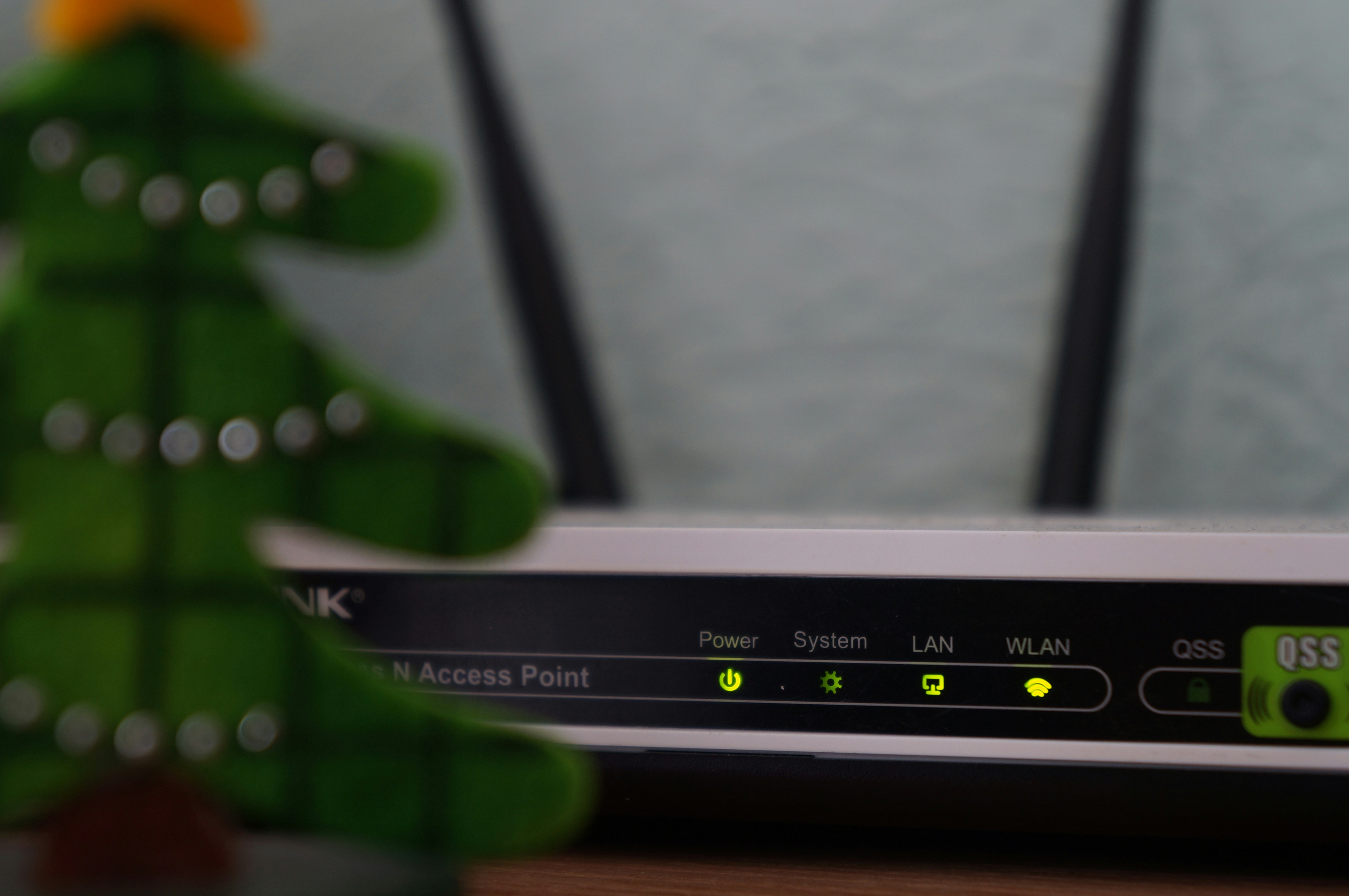
A printer with Wi-Fi capability can usually be reconnected with simple troubleshooting.
2. Quick Diagnosis
Before diving in, run through these quick checks:
- Ensure the printer is fully powered on and not in deep sleep mode.
- Look at the printer’s display panel for a solid or flashing Wi-Fi symbol.
- Check if your computer or phone is connected to the exact same Wi-Fi network name.
- Verify that other devices in the house can access the internet.
- Look for any clear error messages (like “Offline” or “Paper Jam”) on the printer screen.
- Check your printer’s quick-start manual for initial Wi-Fi setup instructions.
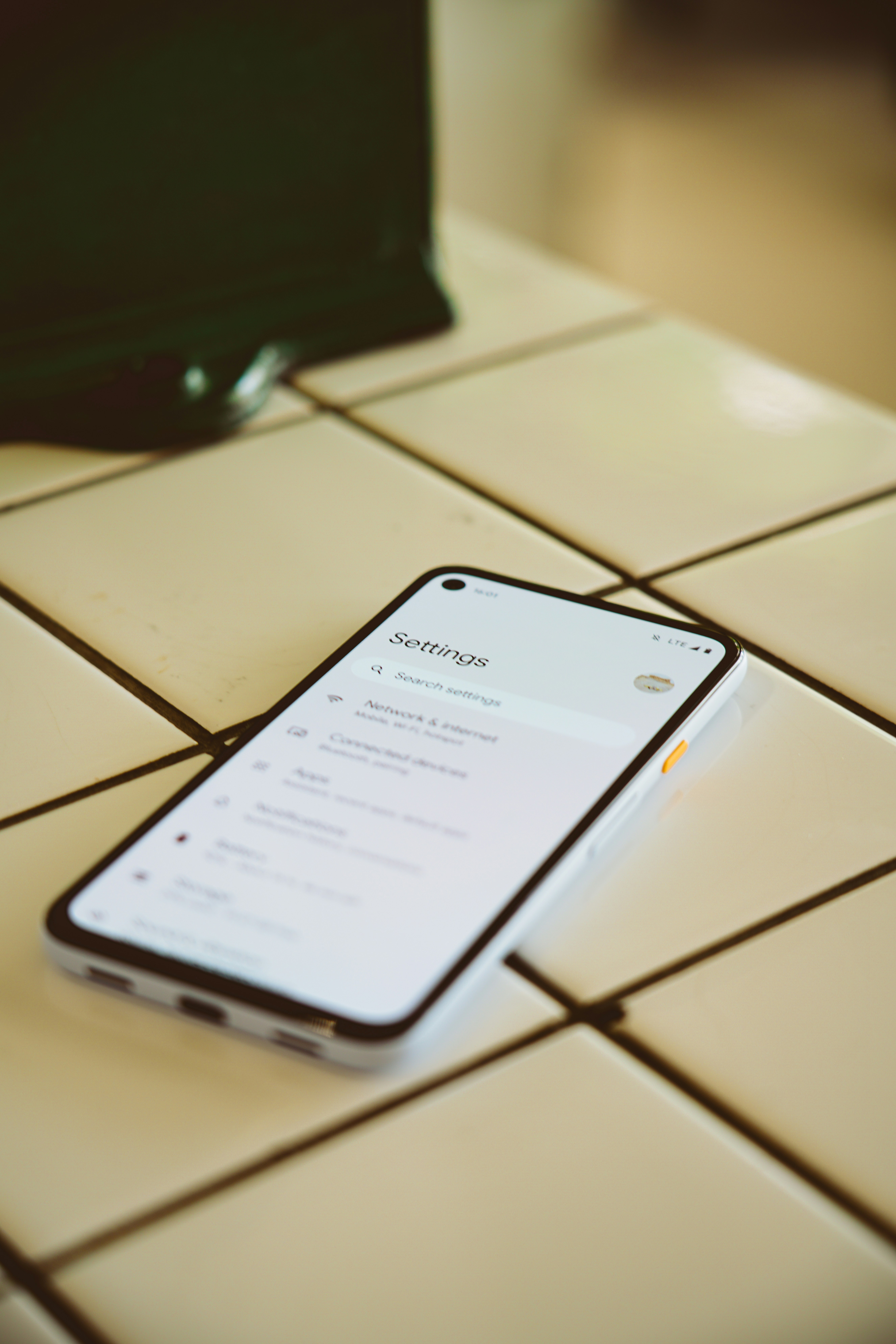
Check your printer’s Wi-Fi settings menu for connection status.
3. Step-by-Step Fix
- Restart printer and router: Turn off the printer and turn off your wireless router. Wait 30 seconds. Turn the router back on first and wait 1 to 2 minutes for the network to establish. Then, turn on the printer.
- Check Wi-Fi network name and password: On the printer’s control panel, navigate to Settings or Network. Look for available networks, select yours, and carefully enter the password. Ensure caps lock isn’t accidentally enabled.
- Move printer closer to router: Wi-Fi signals weaken over distance and through walls. Move the printer closer to the router, clear any physical obstacles, and try connecting again.
- Update printer drivers: Go to the printer manufacturer’s official website on your computer. Download the latest drivers for your specific model, install them, restart the computer, and try connecting to the printer again.
- Forget and reconnect to network: On the printer, go to Network Settings and select “Forget network” or “Disconnect”. Restart the printer, go back to Network settings, select your Wi-Fi network, and enter the password fresh.
- Check printer IP address: Use the printer’s menu to print a Network Configuration Page. Look for the IP address. On your computer, open a browser and type that IP address into the address bar to open the printer’s web interface and check the connection status.
- Factory reset printer: Go to the printer settings and look for “Reset”, “Restore Defaults”, or “Factory Reset”. Select it. Once the printer restarts, you can set up the Wi-Fi connection as if it were a brand new device out of the box.
4. Troubleshooting
- Printer connects but can’t print: This is often a driver issue on the computer side, or the print queue is stuck. Clear the print queue in Windows/Mac settings and restart the print spooler.
- Printer keeps disconnecting: The printer may be entering a deep sleep mode that turns off the Wi-Fi radio, or it is too far from the router.
- Wrong password error: Double-check the exact password on the back of your router (if you haven’t changed it) and watch out for confusing characters like ‘0’ (zero) and ‘O’ (letter).
- Printer not showing in network: Make sure your router isn’t blocking new devices (MAC address filtering) and that you are connecting to the 2.4GHz network band, as many printers do not support 5GHz.
5. Prevention Tips
- Keep your printer’s firmware updated via the manufacturer’s software.
- Keep your Wi-Fi router in a central, elevated location.
- Do not block the Wi-Fi signal with large metal objects or dense walls.
- Use a strong, stable Wi-Fi password.
- Keep the printer away from interference like microwaves or cordless phones.
- Restart your printer and router once a month to keep network tables fresh.
6. When to Call a Professional
If your printer simply won’t connect after trying all troubleshooting steps, or if the Wi-Fi radio inside the printer is confirmed dead, it might be time to call a professional IT technician or consider replacing the printer. Professional setup or diagnostic costs typically range from £40 to £80+. If the printer cost less than £60, buying a new one with a warranty is often the smarter financial choice. See our repair guides to help weigh your options.
7. FAQ
Q1: Why won’t my printer connect to Wi-Fi?
It’s usually due to a typed-in password error, a weak Wi-Fi signal, router interference, or an outdated computer driver.
Q2: How do I find my Wi-Fi password?
It is usually printed on a sticker on the back or bottom of your Wi-Fi router, unless you manually changed it.
Q3: Can I use printer with USB cable instead?
Yes! Almost all wireless printers have a square USB-B port on the back. A £5 cable can bypass Wi-Fi issues entirely.
Q4: How do I know if printer is connected to Wi-Fi?
The Wi-Fi symbol on the printer’s display will usually turn solid blue or green and stop blinking.
Q5: Should I update printer drivers?
Yes. Keeping drivers updated ensures the computer and printer speak the same digital language.
Q6: Can distance from router affect connection?
Absolutely. Walls, floors, and distance severely weaken wireless signals. Closer is always better.
Q7: What if printer connects but won’t print?
This means the network is fine, but the computer’s print queue is stuck. Restart your computer and the Print Spooler service.
Q8: How do I reset my printer?
Navigate the printer’s LCD menu to Settings/Administration and select “Restore Factory Defaults”.