No Sound from Laptop Speakers? 5 Fast Fixes You Can Try Today
Updated for 2026 to reflect current UK emergency call-out pricing and insurance changes.
1. Introduction
Laptop sound issues are incredibly common, but they are usually very easy to fix. Whether it’s caused by accidentally muted audio, outdated driver issues, or minor hardware glitches, you can often resolve the problem yourself. Most of these fixes take just 5 to 10 minutes.
What you’ll need: Your laptop, and possibly a pair of headphones to test the audio output. If all troubleshooting fails, it may be time to call a professional.
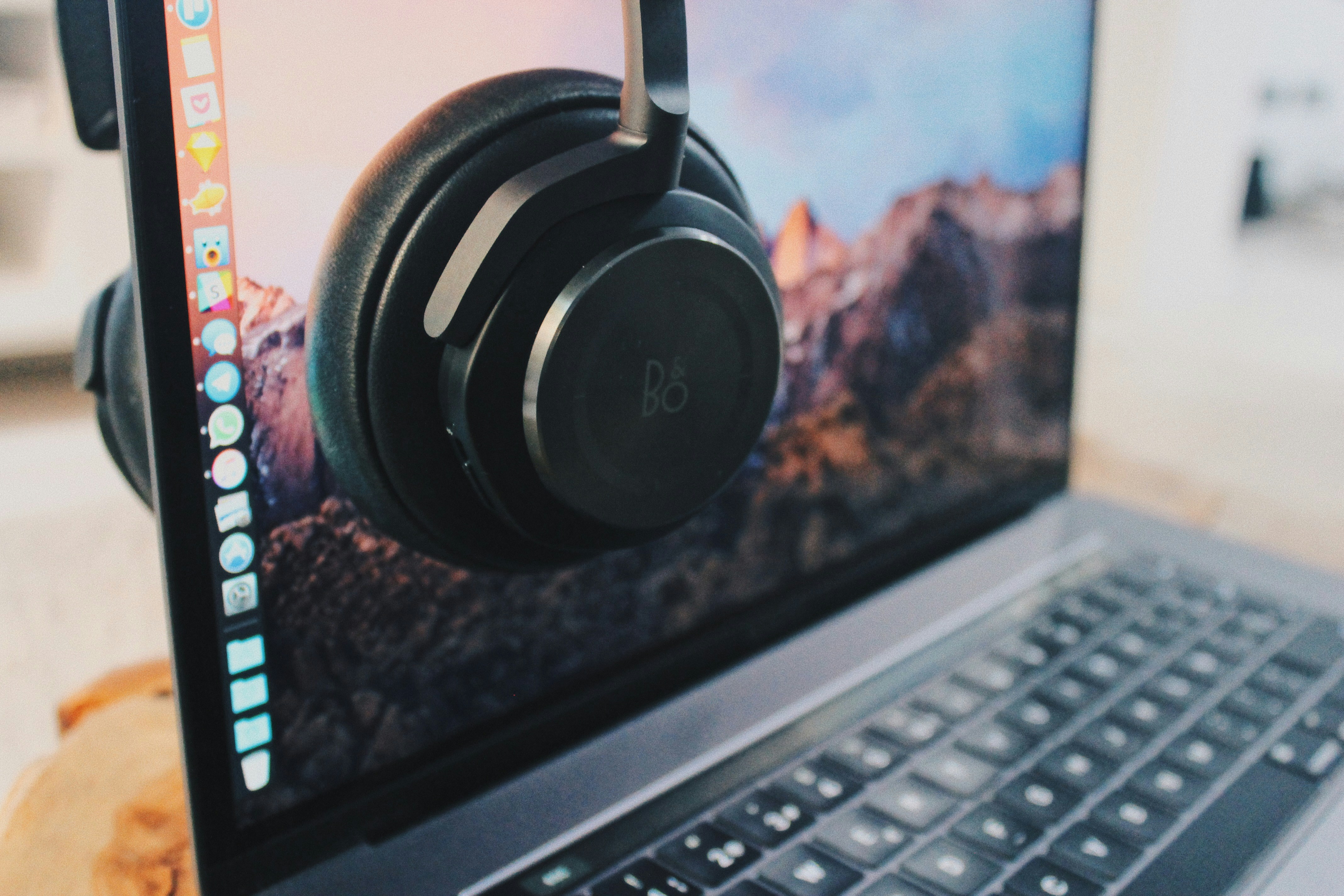
A muted speaker icon usually indicates a simple software fix.
2. Quick Diagnosis
Before making major changes, run through this quick diagnosis:
- Check the taskbar to see if the main volume is muted.
- Check the volume level to ensure it’s not set to zero.
- Try plugging in headphones to see if audio plays through them.
- Ensure an audio or video file is actually playing.
- Look for any specific Windows or Mac error messages related to audio devices.

Check your volume control in the taskbar.
3. Step-by-Step Fix
- Check volume level: Look at the volume icon in the taskbar. Click and drag the slider to increase the volume, and make sure it is not muted.
- Unmute audio: Right-click the volume icon and select “Open Volume mixer”. Check if individual apps (like your browser) are muted and unmute them if necessary.
- Check audio device settings: Right-click the volume icon and select “Open Sound settings”. Verify that the correct speaker is selected as your output device and ensure it is enabled.
- Update audio drivers: Right-click the Start menu and select “Device Manager”. Find “Sound, video and game controllers”, right-click your primary audio device, and select “Update driver”.
- Run audio troubleshooter: Go to Settings > System > Sound, scroll down to Advanced, and click “Troubleshoot”. Follow the on-screen prompts.
- Restart audio service: Press Windows key + R, type
services.msc, and hit Enter. Find “Windows Audio”, right-click it, and select “Restart”. - Test with headphones: Plug in a pair of headphones and play some audio. If sound works in the headphones but not the built-in speakers, it is likely a hardware issue with the speakers themselves.
4. Troubleshooting
- Sound works in headphones but not speakers: The laptop might be stuck in “headphone mode” due to a dirty or damaged audio jack, or the physical speakers are blown.
- No sound anywhere: Usually indicates a severe driver conflict or the Windows Audio service has completely crashed. Reinstall the audio drivers from the manufacturer’s website.
- Sound only in one speaker: Check the audio balance settings in Sound Properties to ensure it’s centered. If it is, one speaker is physically broken.
- Crackling or distorted sound: Lower the volume. If it persists at low volumes, the speaker cone may be torn, or the driver needs an update.
5. Prevention Tips
- Keep your audio drivers and operating system updated regularly.
- Do not block the speaker vents on the bottom or sides of the laptop.
- Avoid spilling any liquid on the laptop keyboard or casing.
- Always use a surge protector when charging your laptop.
- Keep the laptop clean and free of dust, and restart it regularly to clear memory caches.
6. When to Call a Professional
If you have updated the drivers, checked all settings, and still have no sound—or if you suspect physical damage—it’s time to call a computer repair professional. Laptop speaker repair typically costs between £60 and £150+, depending on the make and model of the laptop. A professional can quickly identify motherboard-level issues versus simple speaker replacements. Check out our repair cost guides for more information.
7. FAQ
Q1: Why is there no sound from my laptop speakers?
The most common reasons are accidentally muting the volume, software driver glitches, or selecting the wrong output device.
Q2: How do I know if it’s a hardware problem?
If sound plays perfectly through headphones or external Bluetooth speakers but not the internal ones, it’s a hardware issue.
Q3: Can I fix this myself?
Yes, most sound issues are software-related and can be fixed with the DIY steps outlined above.
Q4: How much does laptop speaker repair cost?
If the physical speakers need replacing, it usually costs between £60 and £150 at a local repair shop.
Q5: Should I update my audio drivers?
Yes, updating or reinstalling audio drivers is one of the most effective ways to fix persistent sound issues.
Q6: What if only one speaker works?
First, check the left/right audio balance in your system settings. If that’s centered, the silent speaker is likely blown or disconnected internally.
Q7: Can malware cause sound issues?
Yes, though rare, severe malware infections can disable critical Windows services, including the audio service.
Q8: Is it safe to restart audio service?
Absolutely. Restarting the Windows Audio service via services.msc is completely safe and a standard troubleshooting step.